
Hands-on Fluss Lakehouse with Paimon S3
Fluss persists historical data in a lakehouse storage layer while keeping real-time data in the Fluss server. A built-in tiering service continuously syncs fresh events into the lakehouse—enabling multiple query engines to run analytics over both hot and cold data. Fluss’s union-read feature then allows Flink jobs to transparently query from both the Fluss cluster and the lakehouse for seamless real-time processing.
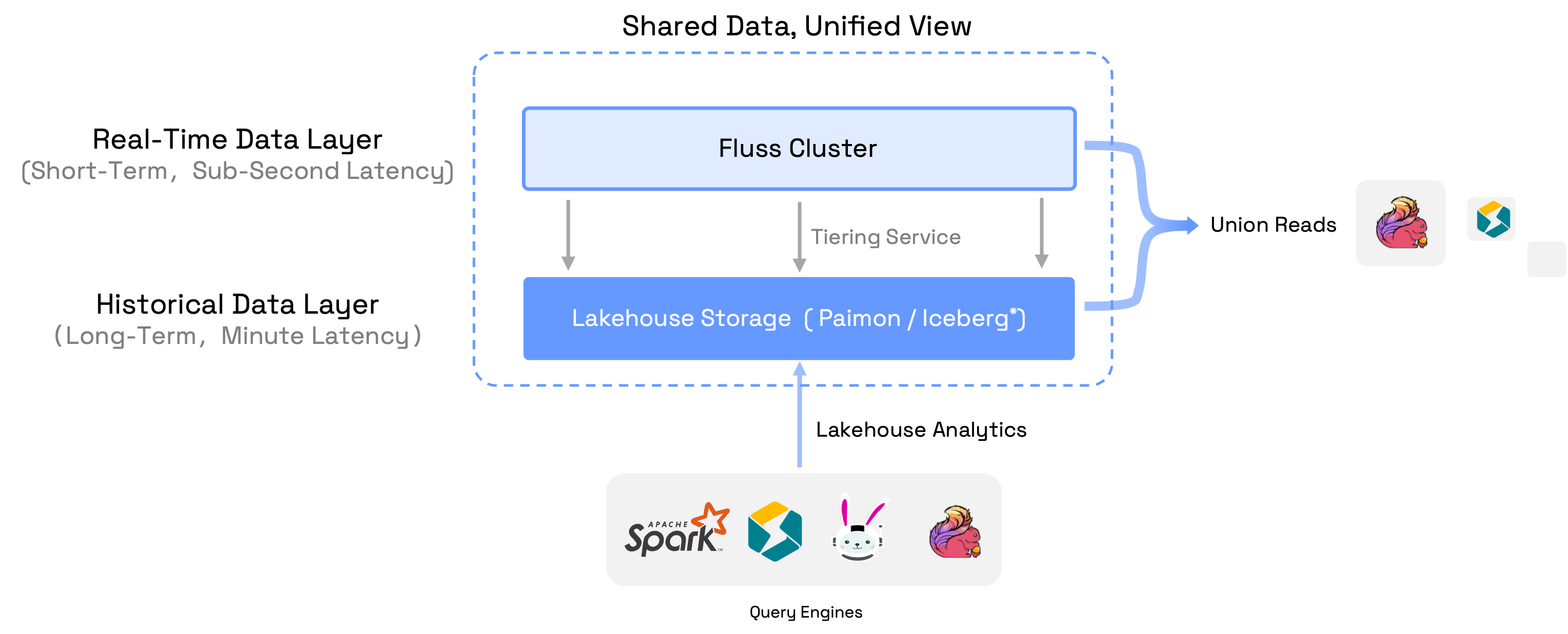
In this tutorial, we’ll show you how to build a local Fluss lakehouse environment, perform essential data operations, and get hands-on experience with the end-to-end Fluss lakehouse architecture.
Integrate Paimon S3 Lakehouse
We’ll use Fluss 0.7 and Flink 1.20 to run the tiering service on a local cluster, with Paimon as the lake format and S3 as paimon storage. Follow these steps:
Minio Setup
- Install Minio object storage locally.
Follow the official guide.
- Start minio server
Run this command with a local path to store minio data.
minio server /tmp/minio-data- Verify in Minio WebUI.
If minio server is successfully running, there will be several endpoints and an account shown:
API: http://192.168.2.236:9000  http://127.0.0.1:9000
   RootUser: minioadmin
   RootPass: minioadmin

WebUI: http://192.168.2.236:61832 http://127.0.0.1:61832
   RootUser: minioadmin
   RootPass: minioadmin
Open the webUI link and login with the user account.
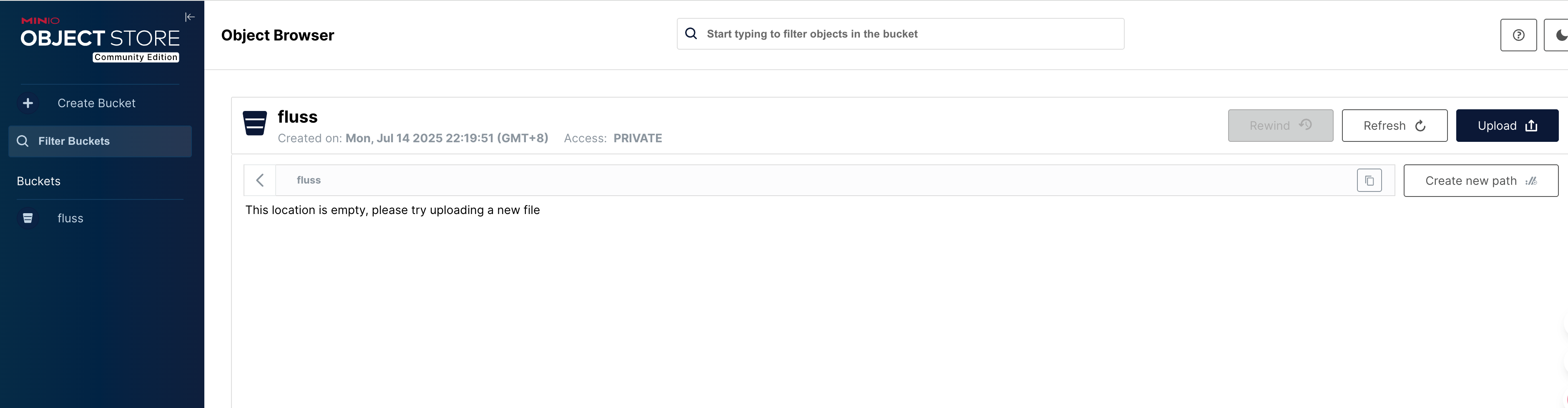
- Create a
flussbucket through webUI.
Fluss Cluster Setup
- Download Fluss
Get the Fluss 0.7 binary release from the Fluss official site.
- Add Dependencies
Download the fluss-fs-s3-0.7.0.jar from the Fluss official site and put it into <FLUSS_HOME>/lib.
Download the paimon-s3-1.0.1.jar from Paimon official site and put it into <FLUSS_HOME>/plugins/paimon.
- Configure the Data Lake
Edit <FLUSS_HOME>/conf/server.yaml and add:
data.dir: /tmp/fluss-data
remote.data.dir: /tmp/fluss-remote-data

datalake.format: paimon
datalake.paimon.metastore: filesystem
datalake.paimon.warehouse: s3://fluss/data
datalake.paimon.s3.endpoint: http://localhost:9000
datalake.paimon.s3.access-key: minioadmin
datalake.paimon.s3.secret-key: minioadmin
datalake.paimon.s3.path.style.access: true
Set Paimon as the datalake format and s3 as the warehouse.
- Start Fluss
<FLUSS_HOME>/bin/local-cluster.sh startFlink Cluster Setup
- Download Flink
Grab the flink 1.20 binary package from the Flink downloads page.
- Add the Fluss Connector
Download fluss-flink-1.20-0.7.0.jar from the Fluss official site and copy it into:
<FLINK_HOME>/lib- Add Paimon Dependencies
- Download
paimon-flink-1.20-1.0.1.jarandpaimon-s3-1.0.1.jarfrom the Paimon official site into<FLINK_HOME>/lib. - Copy the Paimon plugin jars from Fluss into
<FLINK_HOME>/lib.
<FLUSS_HOME>/plugins/paimon/fluss-lake-paimon-0.7.0.jar
<FLUSS_HOME>/plugins/paimon/flink-shaded-hadoop-2-uber-2.8.3-10.0.jar- Increase Task Slots
Edit <FLINK_HOME>/conf/config.yaml:
// e.g. increase the slots number to 5
numberOfTaskSlots: 5- Start Flink
<FLINK_HOME>/bin/start-cluster.sh- Verify
Open your browser to http://localhost:8081/ and confirm the cluster is up.
Launching the Tiering Service
- Get the Tiering Job Jar
Download the fluss-flink-tiering-0.7.0.jar .
- Submit the Job
<FLINK_HOME>/bin/flink run \
    <path_to_jar>/fluss-flink-tiering-0.7.0.jar \
    --fluss.bootstrap.servers localhost:9123 \
    --datalake.format paimon \
    --datalake.paimon.metastore filesystem \
    --datalake.paimon.warehouse s3://fluss/data \
    --datalake.paimon.s3.endpoint http://localhost:9000 \
    --datalake.paimon.s3.access-key minioadmin \
    --datalake.paimon.s3.secret-key minioadmin \
--datalake.paimon.s3.path.style.access true- Confirm Deployment
In the Flink UI, look for the Fluss Lake Tiering Service job. Once it’s running, your local tiering pipeline is operational.

Data Processing
In this section, we’ll use the Flink SQL Client to interact with our Fluss lakehouse and run both batch and streaming queries.
- Launch the SQL Client
<FLINK_HOME>/bin/sql-client.sh- Create the Catalog and Table
CREATE CATALOG fluss_catalog WITH (
    'type' = 'fluss',
    'bootstrap.servers' = 'localhost:9123'
);

USE CATALOG fluss_catalog;

CREATE TABLE t_user (
    `id` BIGINT,
    `name` string NOT NULL,
    `age` int,
    `birth` DATE,
    PRIMARY KEY (`id`) NOT ENFORCED
)WITH (
    'table.datalake.enabled' = 'true',
    'table.datalake.freshness' = '30s'
);- Write data
Inserts two records.
SET 'execution.runtime-mode' = 'batch';
SET 'sql-client.execution.result-mode' = 'tableau';

INSERT INTO t_user(id,name,age,birth) VALUES
(1,'Alice',18,DATE '2000-06-10'),
(2,'Bob',20,DATE '2001-06-20');- Union Read
You can run a simple SQL query to get data from this table. By default, Flink will union data from both the Fluss cluster and the lakehouse:
Flink SQL> select * from t_user;
+----+-------+-----+------------+
| id |  name | age |      birth |
+----+-------+-----+------------+
|  1 | Alice |  18 | 2000-06-10 |
|  2 |   Bob |  20 | 2001-06-20 |
+----+-------+-----+------------+
Users can read data only from the lake table, by appending a $lake after the table name.
Flink SQL> select * from t_user$lake;
+----+-------+-----+------------+----------+----------+----------------------------+
| id |  name | age |      birth | __bucket | __offset |                __timestamp |
+----+-------+-----+------------+----------+----------+----------------------------+
|  1 | Alice |  18 | 2000-06-10 |        0 |       -1 | 1970-01-01 07:59:59.999000 |
|  2 |   Bob |  20 | 2001-06-20 |        0 |       -1 | 1970-01-01 07:59:59.999000 |
+----+-------+-----+------------+----------+----------+----------------------------+
The two records appear in data lake. The tiering service works for syncing data from Fluss to data lake.
Notice that in the paimon lake table, there are three system columns defined there: __bucket, __offset and __timestamp . The __bucket column shows which bucket this row in. The __offset and __timestamp columns are used for streaming mode data processing.
- Streaming Inserts
Let’s switch to streaming mode and insert two new records.
Flink SQL> SET 'execution.runtime-mode' = 'streaming';

Flink SQL> INSERT INTO t_user(id,name,age,birth) VALUES
(3,'Catlin',25,DATE '2002-06-10'),
(4,'Dylan',28,DATE '2003-06-20');
Query the lake:
Flink SQL> select * from t_user$lake;
+----+----+--------+-----+------------+----------+----------+----------------------------+
| op | id |   name | age |      birth | __bucket | __offset |                __timestamp |
+----+----+--------+-----+------------+----------+----------+----------------------------+
| +I |  1 |  Alice |  18 | 2000-06-10 |        0 |       -1 | 1970-01-01 07:59:59.999000 |
| +I |  2 |    Bob |  20 | 2001-06-20 |        0 |       -1 | 1970-01-01 07:59:59.999000 |


Flink SQL> select * from t_user$lake;
+----+----+--------+-----+------------+----------+----------+----------------------------+
| op | id |   name | age |      birth | __bucket | __offset |                __timestamp |
+----+----+--------+-----+------------+----------+----------+----------------------------+
| +I |  1 |  Alice |  18 | 2000-06-10 |        0 |       -1 | 1970-01-01 07:59:59.999000 |
| +I |  2 |    Bob |  20 | 2001-06-20 |        0 |       -1 | 1970-01-01 07:59:59.999000 |
| +I |  3 | Catlin |  25 | 2002-06-10 |        0 |        2 | 2025-07-19 19:03:54.150000 |
| +I |  4 |  Dylan |  28 | 2003-06-20 |        0 |        3 | 2025-07-19 19:03:54.150000 |
At the first time, the two new records have not been synced into lake table. After waiting for a while they appear in the table.
The __offset and __timestamp columns for these two records are not the default values now. It shows the offset and timestamp when the records entered into the table.
- Inspect the Paimon Files
Open the Minio webUI, you will see there exists paimon files in the bucket.
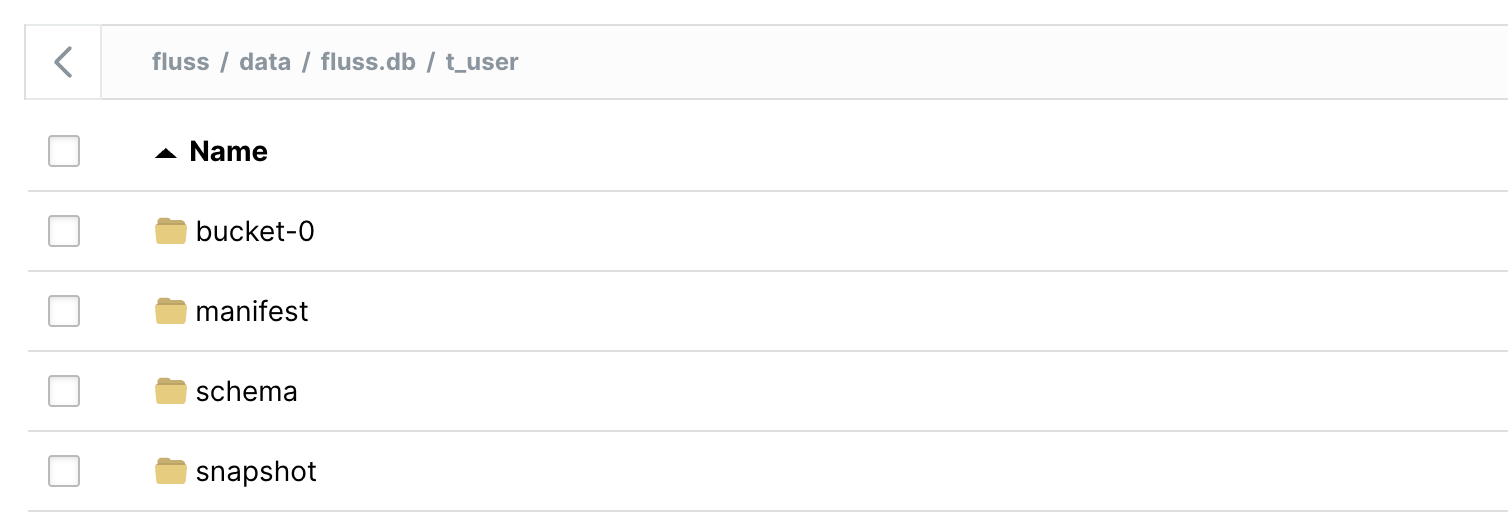
In your local filesystem, you can verify the Parquet files and manifest under /tmp/minio-data .
/tmp/minio-data ❯ tree .
.
└── fluss
    └── data
        ├── default.db__XLDIR__
        │   └── xl.meta
        └── fluss.db
            └── t_user
                ├── bucket-0
                │   ├── changelog-1bafcc32-f88a-42a6-bc92-d3ccf4f62d4c-0.parquet
                │   │   └── xl.meta
                │   ├── changelog-f1853f1c-2588-4035-8233-e4804b1d8344-0.parquet
                │   │   └── xl.meta
                │   ├── data-1bafcc32-f88a-42a6-bc92-d3ccf4f62d4c-1.parquet
                │   │   └── xl.meta
                │   └── data-f1853f1c-2588-4035-8233-e4804b1d8344-1.parquet
                │       └── xl.meta
                ├── manifest
                │   ├── manifest-d554f475-ad8f-47e0-a83b-22bce4b233d6-0
                │   │   └── xl.meta
                │   ├── manifest-d554f475-ad8f-47e0-a83b-22bce4b233d6-1
                │   │   └── xl.meta
                │   ├── manifest-e7fbe5b1-a9e4-4647-a07a-5cc71950a5be-0
                │   │   └── xl.meta
                │   ├── manifest-e7fbe5b1-a9e4-4647-a07a-5cc71950a5be-1
                │   │   └── xl.meta
                │   ├── manifest-list-8975f7d7-9fec-4ac9-bb31-12be03d297d0-0
                │   │   └── xl.meta
                │   ├── manifest-list-8975f7d7-9fec-4ac9-bb31-12be03d297d0-1
                │   │   └── xl.meta
                │   ├── manifest-list-8975f7d7-9fec-4ac9-bb31-12be03d297d0-2
                │   │   └── xl.meta
                │   ├── manifest-list-bba1f130-e7ab-4f5e-8ce3-928a53524136-0
                │   │   └── xl.meta
                │   ├── manifest-list-bba1f130-e7ab-4f5e-8ce3-928a53524136-1
                │   │   └── xl.meta
                │   └── manifest-list-bba1f130-e7ab-4f5e-8ce3-928a53524136-2
                │       └── xl.meta
                ├── schema
                │   └── schema-0
                │       └── xl.meta
                └── snapshot
                    ├── LATEST
                    │   └── xl.meta
                    ├── snapshot-1
                    │   └── xl.meta
                    └── snapshot-2
                        └── xl.meta

28 directories, 19 files- View Snapshots
Users can also check the snapshots from the system table, by appending $lake$snapshots after thefluss table name.
Flink SQL> select * from t_user$lake$snapshots;

+-------------+-----------+----------------------+-------------------------+-------------+----------+
| snapshot_id | schema_id |          commit_user |             commit_time | commit_kind | ...      |
+-------------+-----------+----------------------+-------------------------+-------------+----------+
|           1 |         0 | __fluss_lake_tiering | 2025-07-19 19:00:41.286 |      APPEND | ...      |
|           2 |         0 | __fluss_lake_tiering | 2025-07-19 19:04:38.964 |      APPEND | ...      |
+-------------+-----------+----------------------+-------------------------+-------------+----------+
2 rows in set (0.33 seconds)
Summary
In this guide, we gave a concise overview of the Fluss lakehouse architecture, walked through a step-by-step local setup of both Fluss and Flink clusters, and showcased practical data-processing examples using real-time and historical data. Those steps give you practical experience with Fluss’s lakehouse architecture in a local environment.